
You already know the user journeys that matter in your mobile app.
Hell, you probably checked a few before the last release: open the screen, change something, save it, make sure it worked. Then next week you’ll do it all again, by hand.
So what’s stopping you from making UI tests and claiming back that time? 🤔
UI testing for humans
Ansight’s UI tests are written in natural language and executed by an agent.
Put simply, write your test like you would a spec and… that’s it!
id: check-gps-location-share
name: Check Location Share Feature
appId: com.alphaoutdoors.redpoint
hintTasks:
 - copy-gps-location
prompt: |-
  Start on the For you tab with seeded demo data.
  Search for "Eagle Rock" and open the "Eagle Rock" area result.
  Search for Approach within the area.
  Wait for the Location card to appear.
  Open its share control and choose Copy location.
  Inspect the clipboard and validate that the location copied matches what is shown on screen.
Ansight is a blended test runner; an agent controls the overall execution of the test and dynamically chooses to interact with the app itself, or delegate to a task, a predefined automation script.
“I don’t have time to write another script”
You’ve already spent time checking the feature by hand; if you also captured an Ansight session replay, you now have a starting point for the automated test!
Take any Ansight replay for your app, and use our test extractor to convert that into a YAML test.
“Won’t I just end up maintaining it?”
Yes, you’ll still maintain the intent; if the product changes, the test should change with it.
But you can describe “open the area result” without encoding every tap and screen coordinate into the YAML.
Keep the common parts fast
Ansight enables you to encode repeated behaviour into reusable automation scripts called Ansight tasks. Similar to a Maestro or Appium test script.
A task gives the agent the ability to ‘short-circuit’ workflows; this speeds up agentic test runs and reduces token costs by avoiding repeated reasoning through the same interactions.
Your full test stays readable and flexible, with reusable tasks for the parts you’ve already worked out and don’t change often.
You can start with plain language and add tasks as the suite grows. The recorder can also extract a draft task from a selected section of a replay.
Proof of work you can replay
Every test also produces a session replay as your proof of work you can inspect. Scrub through the captured screens, touches, logs, and network events on one timeline to see what the test actually did and how the app responded.
With the Ansight SDK, you can enrich that timeline with your own app events and data: the selected location, a validation result, or the state of a background sync.
Use the enriched replay to validate the internal state of the app was correct, not just that the superficial UI flow worked.
Build your first test from a replay
Start with one small journey you already repeat and capture it while Ansight is connected.
For a short replay, choose Generate test to use the whole replay. For one journey inside a longer replay, select its timeline range and choose Extract test or task, then Ansight test.
Here is the Eagle Rock Approach replay from Red-Point, captured on my physical iPhone.
We search for Eagle Rock, open its details, filter for “Approach”, and copy the location. The useful check is that the clipboard matches the GPS location shown in the app.
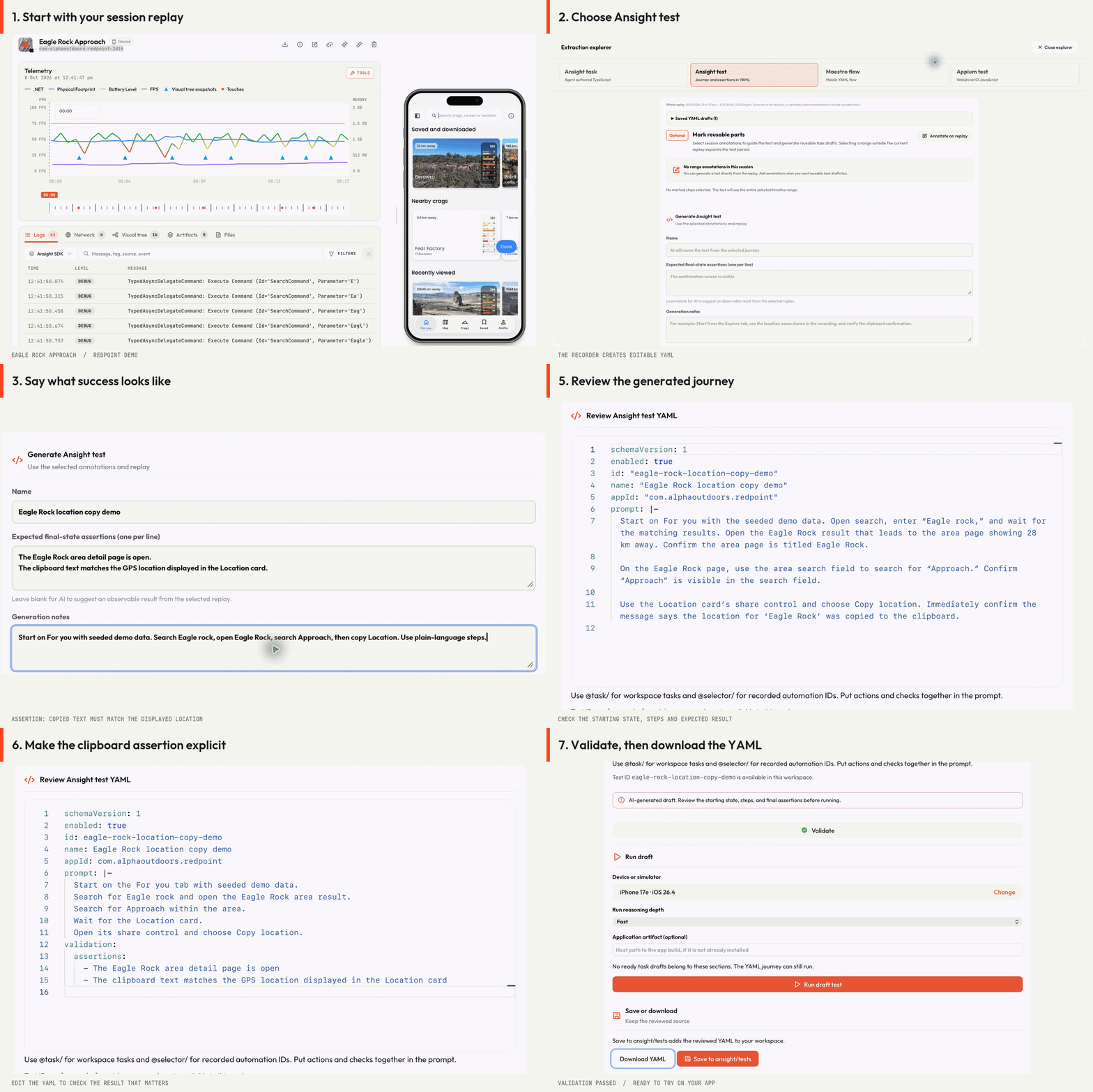
- Describe success. Enter a name and the expected final-state assertions. Use Generation notes for the starting screen, test values, or anything that needs explaining in the replay.
- Generate the test. For a first test, skip reusable task extraction and choose Generate with AI. Ansight uses the replay and your instructions to draft the journey in YAML.
- Review and validate. Read the generated steps, check the expected outcome, and validate the YAML. Correct anything ambiguous before trying it on a device.
- Keep it. Choose Save to ansight/tests to add the reviewed file to the linked workspace, or Download YAML to keep a copy.
For this demo, review includes checking the actual clipboard value. A “copied” confirmation alone leaves the content of the clipboard untested, so we make that assertion explicit in the YAML.
The workspace setup guide covers the repository structure for saving and running your tests.
Extracting UI tests and tasks using Ansight requires one of our paid plans (or a free trial).
Run it against your app
After saving your new test, run it from your app’s Ansight workspace:
ansight test run . check-gps-location-shareAgent-driven runs require a signed-in Ansight plan that includes workspace testing. You can create and validate the definitions locally before running them.
Claim back that time
Pick the journeys you check before every release and then capture replays to easily create your tests, ready for the next release.
Start your Ansight trial and build your first UI test.
You’ve already done the tapping. Make that work count next time.