Annotations
Add review notes to captured sessions and tie them to timestamps, screenshots, frame ids, geometry, sources, and downstream handoff.
Annotations are review notes attached to a captured session. They help a tester, developer, or agent mark important moments without changing the original evidence stream.
Place an Annotation
Use Shift+left-click while reviewing a session to create an annotation at the point you are inspecting.
- Shift+left-click on the telemetry timeline to place a time-based annotation. Use this when the note is about a timestamp, range, performance change, log cluster, or state transition.
- Shift+left-click on the replay screenshot to place a screen-targeted annotation. Use this when the note is about a visible control, map marker, clipped label, missed tap target, or other specific screen region.
After placing the annotation, add the note text and review metadata in the Annotations tab. Timeline and screen targets can be used together when a problem has both a time window and a visual location.
Target Timeline Sections
Timeline annotations are useful when the issue spans a period of time. Hold Shift and left-click on the telemetry timeline to start from the moment you are reviewing, then use the annotation details to preserve the relevant timestamp or range. Use this for a slow interaction, FPS drop, memory ramp, repeated log cluster, or any other sequence that should be reviewed as one event.
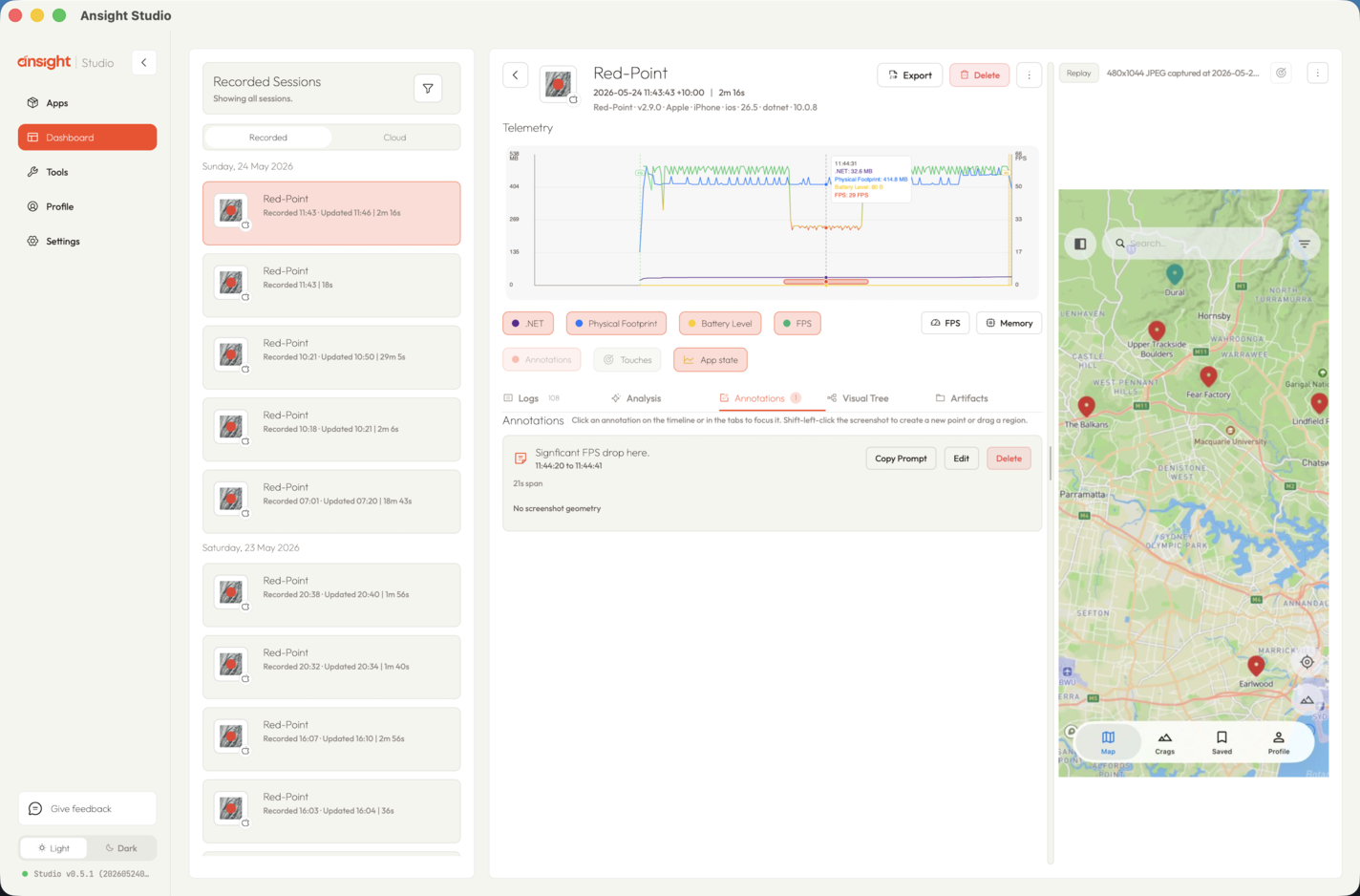
Timeline annotation example
Target Screen Sections
Screen-section annotations are useful when the issue is spatial: a missed tap target, clipped label, misplaced control, confusing marker, stale screen state, or UI region that needs developer attention. Hold Shift and left-click on the replay screenshot to attach the note to the screen content visible at that moment.
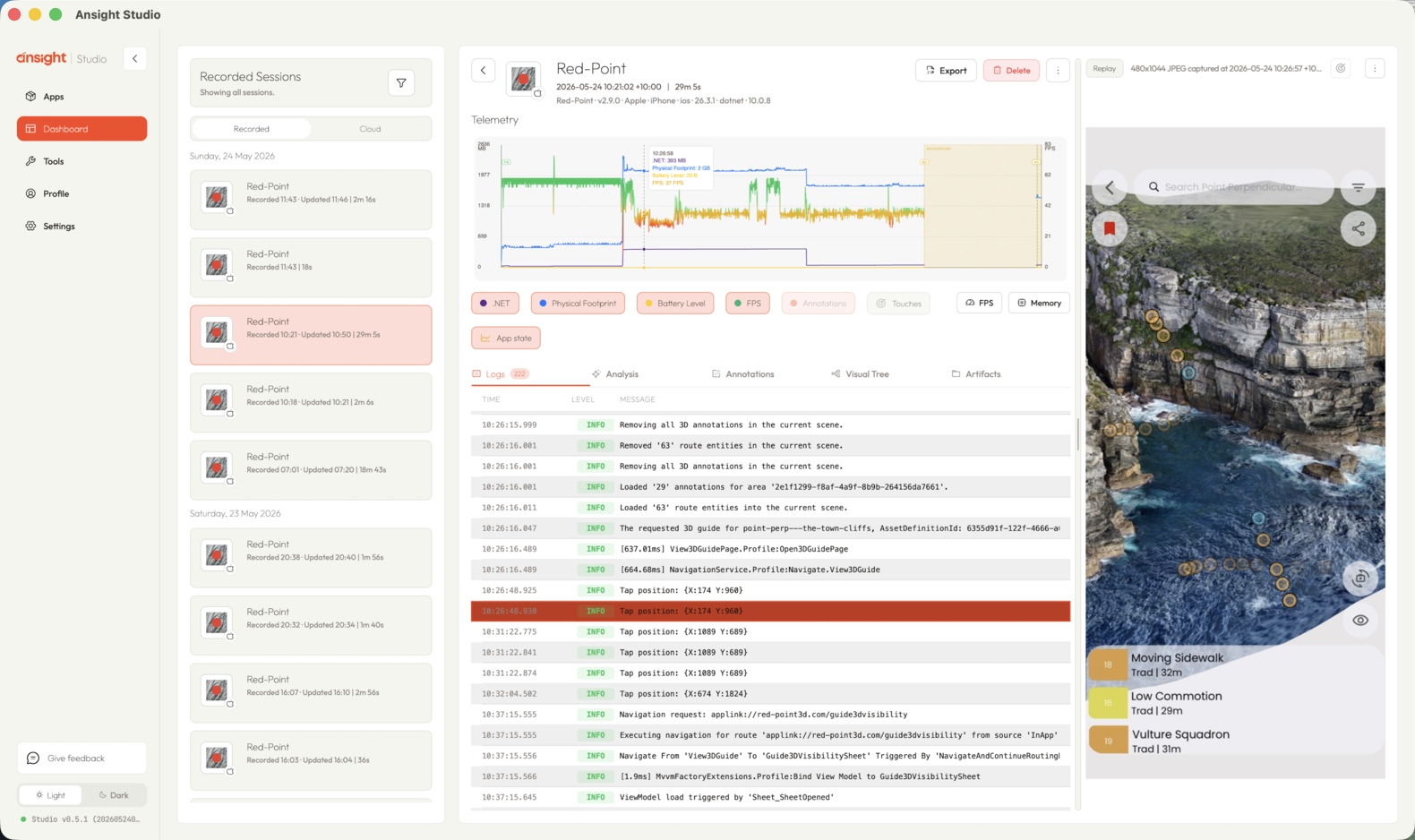
Screen-section annotation example
What Annotations Capture
An annotation can identify:
- the session it belongs to
- the time range or point in time it describes
- label text and notes
- the annotation source
- a screenshot frame id
- optional screen geometry
- related review metadata
Geometry is useful when a note is about a specific region of the screen, such as a missed tap target, clipped label, or incorrectly placed control.
Timeline ranges and screen geometry can be used together. For example, a reviewer can mark the time range where FPS dropped and target the screen section that was active during that drop.
Human and Agent Notes
Ansight Studio can show annotations created by people during review and annotations injected by an agent through the local bridge. Keeping the source lets reviewers distinguish manual notes from automated analysis.
Review Workflows
Use annotations to:
- mark reproduction steps
- call out suspicious events
- attach notes to a screenshot region
- preserve the reason a session was pinned or renamed
- carry review context into an exported bundle
Related Agent Tools
Agents use the annotation tools in Session Inspection MCP tools to read, create, update, and delete session annotations.