App Setup and Pairing
Register apps in Ansight Studio, link codebases, issue signed pairing configs, and generate QR payloads for development builds.
Ansight Studio starts with a known app entry. The app entry gives captures, pairing configs, sessions, and linked code context a stable place to live.
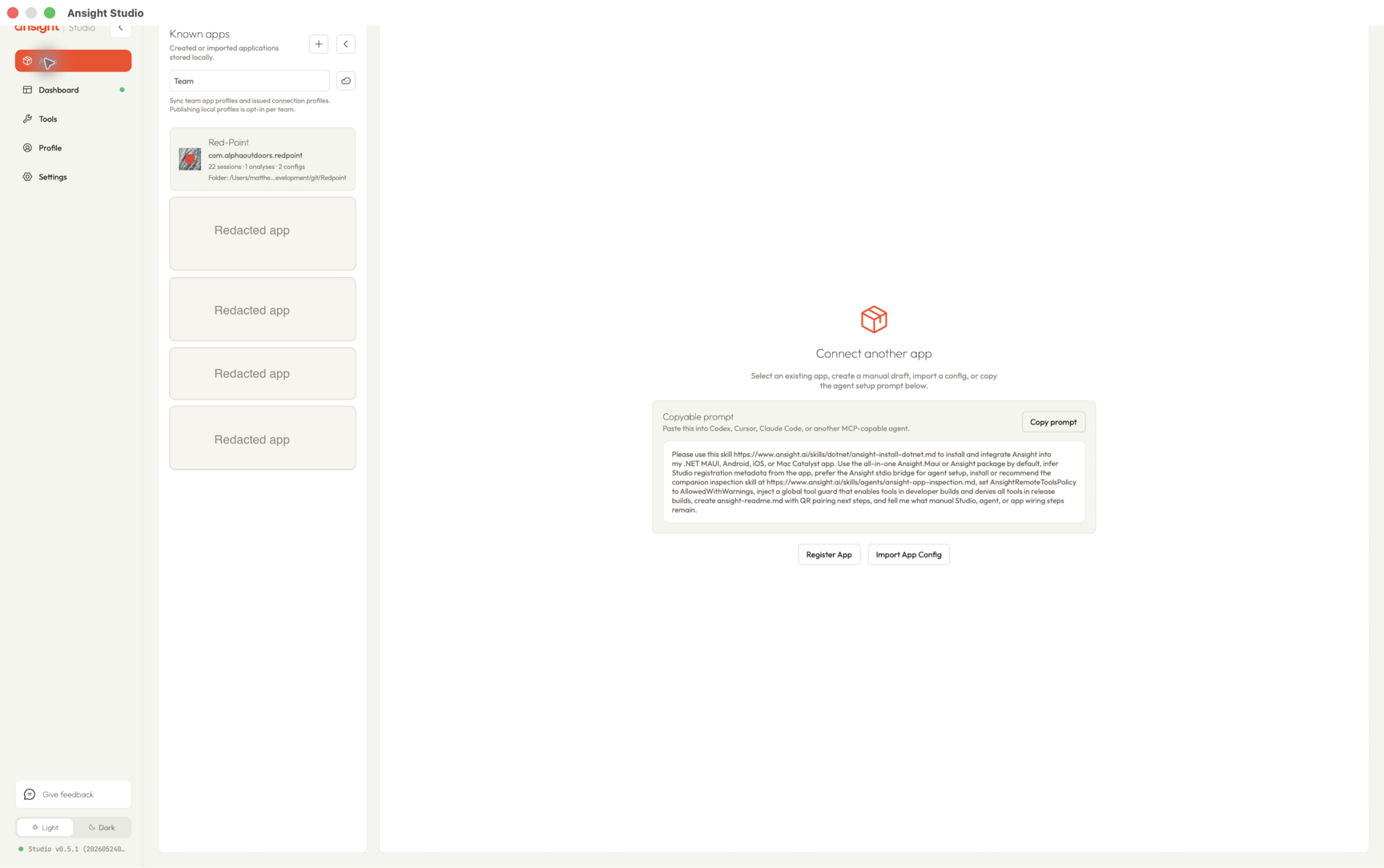
What Ansight Studio Stores
For each app, Ansight Studio can store:
- app name
- app identifier
- optional linked codebase folder
- optional app icon
- last-seen device and session activity
- pairing configs issued for that app
Linking a codebase is optional for pairing, but it helps keep runtime evidence tied to the project an agent or developer is working in.
Pairing Configs
Ansight Studio issues signed, expiring pairing configs for development builds. Each config includes:
- app id and app name
- a one-time token
- issued and expiry timestamps
- the host public key and fingerprint
- the challenge public key used during first-pair proof
The Studio duration selector offers:
1mo6mo1y(saved as12mo)
Use short-lived configs for everyday local development. Longer configs are better reserved for internal test builds that need repeatable pairing over a known window.
QR Pairing
Ansight Studio can turn a pairing config into a QR payload. That payload combines the config with host discovery hints such as the selected host address, host name, or Wi-Fi name.
QR pairing is the simplest path for physical devices because the app can scan the payload instead of receiving a JSON file manually.
Related Agent Tools
Agents use the App Management and Pairing MCP tools when they need to inspect known apps or issue pairing configs through Ansight Studio.