Exports and Handoff
Export Ansight Studio session evidence as portable bundles for bug reports, teammate review, AI-assisted investigation, and later replay.
Exports turn an Ansight Studio capture into a portable artifact. Use them when evidence needs to leave the current review view and become part of a bug report, ticket, teammate handoff, or later investigation.
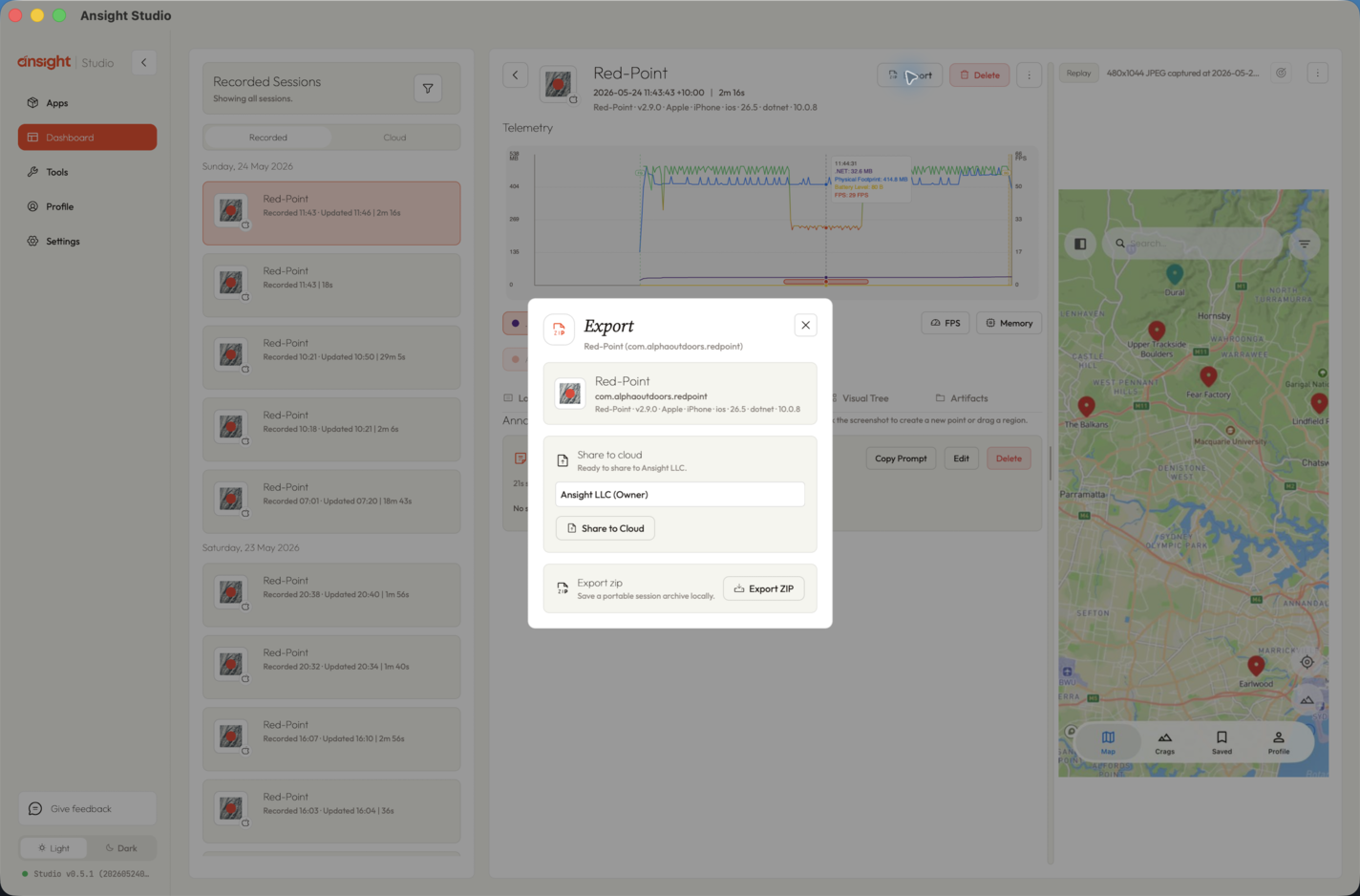
Team Sharing
Use team sharing when another person needs to inspect the same captured session in Ansight Studio without manually moving files around.
- Open the captured session in Ansight Studio.
- Click Export in the session header.
- In Share to cloud, confirm the destination team or organization.
- Click Share to Cloud.
- Send the shared session reference to the teammate who needs to review it.
Team sharing is useful for review loops where a tester captures the problem and a developer or support engineer needs to replay the same evidence. The shared session keeps the review context together: session metadata, timeline evidence, screenshots, logs, telemetry, annotations, and captured artifacts that are available for that session.
Example cloud share: Red-Point captured session shows the kind of replayable session reference a teammate can open when a capture has been shared.
Before sharing, review annotations and logs for secrets, customer data, or environment-specific details. Ansight Studio sharing is intended to preserve debugging evidence, so it can include information that was visible in the app or emitted by the app at runtime.
ZIP Exporting
Use ZIP export when the session needs to leave Ansight Studio as a local, portable archive. This is the right path for ticket attachments, offline analysis, long-term archival, vendor handoff, or sending evidence to someone who does not have access to the same Ansight Studio team.
- Open the captured session in Ansight Studio.
- Click Export in the session header.
- In Export zip, click Export ZIP.
- Attach the generated archive to the bug report, incident, release note, or external handoff location.
The ZIP is designed to be self-contained. Depending on what was captured and which export path is used, it can include:
- a session manifest with app, platform, device, runtime, and capture timing
- timeline evidence that preserves event order
- logs and selected log slices
- screenshots and replay frames
- visual tree payloads
- telemetry summaries and sampled channels
- touch input slices and gesture context
- annotations and review notes
- captured artifact files
- Markdown notes for humans and agents
ZIP exports are better than screenshots alone because they preserve the supporting evidence around the visible problem. A developer can inspect the logs around the same timestamp, compare telemetry changes, and trace what the app reported before and after the captured frame.
Choosing a Handoff Path
Use team sharing when the reviewer is inside the same Ansight Studio workflow and should keep collaborating on the same session.
Use ZIP export when the evidence needs to become a file: attach it to a tracker, archive it with a release, send it to an external team, or hand it to an agent for offline analysis.
For sensitive captures, prefer a focused export or slice when the full session includes unrelated logs, screens, or artifacts. Keep the exported evidence narrow enough to explain the issue without carrying unnecessary runtime data.
What Can Be Exported
Ansight Studio export workflows can include:
- session metadata
- logs
- screenshots
- visual tree payloads
- telemetry summaries
- touch input slices
- annotations
- artifact files
- timeline evidence
- Markdown notes
The export shape depends on whether you are exporting a whole session, a log slice, or a touch slice.
Handoff Use Cases
Exports are useful when:
- a tester needs to hand a reproducible report to a developer
- a developer wants to attach runtime evidence to a ticket
- a support engineer needs to share a captured session with the product team
- a QA lead needs to preserve evidence for a release decision
- an agent needs a focused evidence bundle for offline analysis
- a team wants to keep a capture with a regression or release note
Review Checklist
Before handing off a shared session or ZIP:
- confirm the selected session is the one that reproduces the issue
- add annotations for the important timestamp or screen region
- include a short note about expected behavior and actual behavior
- verify the relevant logs, telemetry, screenshots, or artifacts are present
- remove or avoid sharing captures that contain unnecessary secrets or customer data
Related Agent Tools
Agents use Evidence and Artifacts MCP tools, Log Review MCP tools, and Touch Review MCP tools to create focused exports through Ansight Studio.